

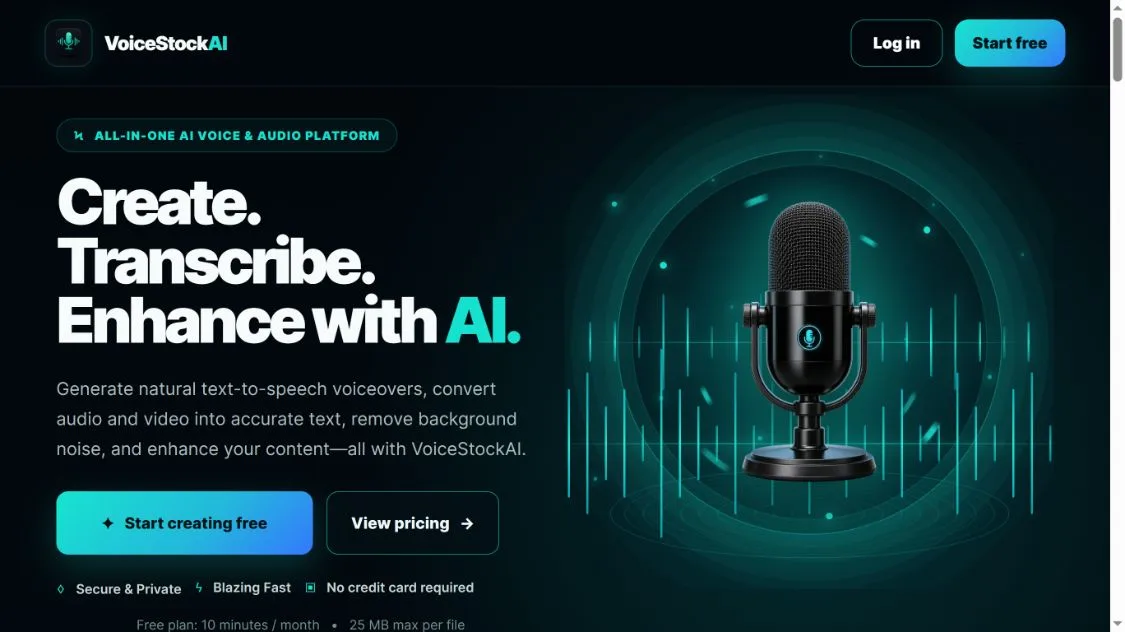
VoiceStockAI is a browser-based platform that brings four jobs together: turning a script into speech, converting recordings into text, reducing background noise, and processing video. Its appeal is convenience. A creator can work on narration, captions and noisy recordings without starting with four unrelated services.
The useful question is not whether it has an “AI” label. It is whether one of those tools solves the problem in your next recording. Here is what the platform offers, where it could fit your workflow, and what to check before relying on it.
VoiceStockAI at a glance
The VoiceStockAI website currently presents four main tool areas, rather than five separate products:
- Text to speech: create spoken audio from a written script.
- Speech to text: turn an audio or video recording into a transcript or subtitle file.
- AI audio cleaner: reduce unwanted sound in an existing recording.
- AI video tools: apply supported video workflows, overlays and audio enhancement.
These are related tasks, but they are not interchangeable. An AI voice generator creates narration; a transcription tool extracts words from narration you already have. A background noise remover works on the recording itself.
The pricing section separates the free allowances: 10 minutes of audio cleaning per month, 30 text-to-speech minutes in the first month, then 20 TTS minutes each month, with five TTS generations per day and a 25 MB file limit. The hero summarises this as “10 minutes / month,” so check the quota for your specific tool in your account.
Which tool should you open first?
Start with the material you already have:
- You have a script but no recording: use text to speech.
- You have speech and need searchable notes: use speech to text.
- You have understandable speech with distracting room noise: try the audio cleaner.
- You have a video and need one of the listed presets or audio changes: inspect the video tools.
- You need subtitles for a video: the transcription tool is the relevant starting point.
This small distinction saves a lot of trial and error. Uploading a noisy recording to a voice generator will not repair it, and generating speech will not produce a transcript of an interview.
If you are comparing tool categories more broadly, our guide to choosing an AI tool can help you narrow the job before choosing a platform.
1. Text to speech: a script becomes a voiceover
VoiceStockAI’s text-to-speech page lists 54 selectable voices across nine language groups, adjustable speaking speed, and MP3 or WAV output. These are the provider’s current feature listings; they are not a promise that every voice will suit every script.
For a short tutorial, product explanation or presentation, the workflow is straightforward: add the script, choose the language and voice, adjust the speed, then preview and download the narration.
The writing still matters. A sentence that looks fine on a page can sound awkward when read aloud. Break long sentences, make abbreviations clear and listen carefully to names, numbers and technical terms.
A useful first test is a short paragraph containing the hardest words in your project. If the product name, local place name or acronym sounds wrong, fix that before generating the entire script. Do not spend your allowance discovering the same pronunciation problem across a long recording.
MP3 is often convenient for sharing and smaller files. WAV may be useful when your editing workflow calls for it, but choose the format your editor supports rather than assuming that a larger file automatically means a better voice.
Best fit: explainers, lesson narration, presentation drafts and repeatable voiceover work.
Check first: language coverage, pronunciation, delivery and the permission terms for your intended use. A selectable synthetic voice is not evidence that the service can clone your own voice.
2. Speech to text: recordings become useful notes and captions
The speech-to-text tool is the part of VoiceStockAI aimed at audio to text and video transcription. Its public page lists more than 98 language options, optional speaker recognition, translation of supported speech into English, and TXT, SRT, VTT or CSV exports.
The output format should follow the job. TXT suits a transcript you want to edit. SRT and VTT are subtitle formats, so they matter when you need timed captions. CSV may suit a structured workflow, but check what the export contains before building a process around it.
For an interview or meeting, speaker labels can make a transcript easier to follow. They still need checking: a label does not establish a person’s identity, and overlapping speech is harder to separate than one clear voice at a time.
Names, dates and figures deserve special attention. If a speaker says a price, a medicine name or a deadline, compare the text with the recording before sharing it. Do not treat a confident-looking sentence as proof that every word was heard correctly.
For subtitles, review timing as well as wording. A transcript can be mostly accurate while captions appear too early, stay on screen too long or split a sentence at an awkward place.
Best fit: interview notes, lecture review, podcast transcripts and captions for your own videos.
Check first: recording quality, selected language, speaker labels and export compatibility. Translation into English is a different task from preserving the original wording.
If your source is an existing YouTube video with captions, our YouTube transcript guide explains an alternative starting point. You may not need to upload a file just to read an available transcript.
3. AI audio cleaner: reduce noise without losing the voice
VoiceStockAI’s AI audio cleaner is advertised for hum, hiss, fan sounds and distracting room noise. The page lists MP3, WAV, MP4 and M4A support, balanced and strong cleaning modes, and a preview before download.
That makes it relevant to a voice note recorded near a computer fan, a lesson with a steady background sound, or dialogue in a video that is otherwise usable.
Start with the gentler option and compare it with the original. Listen for both things: whether the distraction is lower and whether the speaker still sounds clear. A quieter background is not a successful edit if words become thin, muffled or difficult to understand.
Strong cleaning is worth considering when the milder result still leaves distracting noise. It should be a decision based on listening, not a default chosen because the label sounds more powerful.
Do not expect any background noise remover to recreate speech that was never captured clearly. Severe clipping, several people speaking together, heavy wind over the microphone or music covering quiet speech can make a recording difficult to recover.
Best fit: understandable spoken recordings with persistent background noise.
Check first: the before-and-after result, speech clarity and whether the processed file works in your editor. Keep the original recording so you can start again.
4. AI video tools: a companion to the audio workflow
The video-tools page lists creator presets, overlays, video processing and audio enhancement. Its examples point toward social clips, tutorials, product demonstrations and other creator workflows.
The practical advantage is having these options near the transcription and narration tools. A short tutorial could need a cleaned voice track, subtitles and a simple video transformation; those jobs relate to one another.
However, a broad “AI video tools” label does not tell you every export format, preset or limit. Inspect the available controls for your particular project. Do not assume that it generates a video from a prompt, replaces a full timeline editor or provides professional colour grading just because it processes video.
Best fit: a supported, clearly defined video change within a wider voice-and-caption workflow.
Check first: the actual preset, output quality, supported input and the export requirements of the platform where you will publish.
Who is VoiceStockAI most useful for?
A solo creator is the clearest fit to evaluate. If you regularly move between scripts, voiceovers and captions, having those functions together could reduce the number of services you open. The value depends on the results and limits you actually get, not the number of feature cards on the homepage.
Students may find transcription useful for recordings they are allowed to make and upload. A searchable transcript can make review easier, but it does not replace listening to unclear passages or checking a quotation.
Small teams could use narration drafts, training material or interview transcripts. For client or internal recordings, first check the team’s rules on third-party processing and the permissions of the people recorded.
It is less suitable to adopt blindly for long recordings, sensitive work or a demanding production deadline. Check the file limit, account allowance and download window before making it the only copy of an important job.
VoiceStockAI’s content tools also serve a different purpose from a business phone assistant. If you need software that handles live customer calls, see our AI voice-agent guide for small businesses instead.
A sensible first workflow: one short clip, a clear task
You do not need a complicated test to decide whether this platform is useful to you. Start with a short recording you own and can safely upload.
- Save the original locally. Write down the task: clearer speech, a transcript, subtitles or a new voiceover.
- Use only the relevant tool first. If noise is distracting, compare a cleaned sample with the original before transcribing the whole file.
- Review the result. Listen for missing words and distortion; for a transcript, check names and numbers against the recording.
- Download promptly and open the file in your actual editor or player. A successful download is not the same as a useful deliverable.
- Check the remaining account allowance before adding another processing step.
For a script-based video, reverse the starting point: write and edit the script first, generate a short voice sample, then build the video around the approved narration. Avoid producing a long voiceover while the wording is still changing.
This is a suggested evaluation method, not a report of measured results from VoiceStockAI. It gives you a way to judge the tool on your own accent, source material and publishing needs.
Free access, paid access and the download window
The advertised free plan is a starting point for short trials. Its pricing table lists 10 minutes of monthly cleaning, 30 TTS minutes in the first month and 20 thereafter, five TTS generations per day, and a 25 MB maximum file size. Large video files can hit the size limit even when the clip is short. Confirm how transcription and video jobs count against your account allowance.
On 10 October 2026, the public pricing section lists Starter at $9.99, Pro at $24.99 and Business / Studio at $49.99 per month. Their advertised monthly processing allowances are two, 20 and 100 hours respectively, with different file and concurrency limits. Check the checkout screen for the current price, included tools and quota rules before paying.
The current Terms of Service say paid access lasts 30 days after checkout and does not renew automatically. Recheck the terms shown when you purchase; plans can change.
VoiceStockAI also says processed media is held in a private gallery for one hour and then deleted automatically. Download useful results promptly and keep your own backups. A short retention window is convenient for housekeeping, but it can be inconvenient if you expect the gallery to store a project overnight.
Privacy and quality checks worth making
The privacy policy describes uploaded-media retention, account information and third-party services. Automatic deletion of media should not be read as a promise that no account data, usage information or service logs exist.
For ordinary creator material, begin with a non-sensitive sample. For confidential meetings, client work or recordings containing personal information, check the relevant permissions and processing requirements before uploading.
Ask support if you need details that the public policy does not answer, such as a particular hosting location or client data requirement. Do not infer enterprise-level controls from the words “private workspace.”
Quality needs its own check too. The website explains what the tools are designed to do, but feature lists do not establish transcription accuracy, processing speed or voice quality for your project. Those require a real sample and a review of its output.
Frequently asked questions
What is VoiceStockAI?
It is an online platform for generating speech, transcribing recordings, cleaning audio and processing video. Its public website currently presents four main tool areas.
Is VoiceStockAI free?
Yes, the pricing section lists a free plan with 10 minutes of monthly cleaning, 30 TTS minutes in the first month and 20 thereafter, five TTS generations per day, and a 25 MB file limit. Check your account for the current allowance for the tool you want to use.
Can it convert audio to text and transcribe video?
Its speech-to-text page lists both audio and video input. It also lists transcript and subtitle exports. Check that your particular file is supported before relying on it for a long job.
Does it remove background noise from videos?
The audio-cleaner page lists video support alongside audio formats. Preview the result, because lowering noise and preserving clear speech are both necessary for a useful edit.
Can I download an AI voiceover?
The text-to-speech page lists MP3 and WAV downloads. Preview a short sample first, especially if your script includes unusual names, abbreviations or technical vocabulary.
Does VoiceStockAI clone voices or generate complete videos?
The public pages reviewed here describe selectable voices and video-processing features. They do not establish voice cloning or full text-to-video generation, so those capabilities should not be assumed.
How long do processed files remain available?
The site says processed media remains in a private gallery for one hour before automatic deletion. Download the result promptly and store a local copy.
The verdict: useful scope, but judge the output
VoiceStockAI is worth considering when your work involves short narration, transcripts, noisy speech or a supported video-processing task. Its strongest idea is putting related AI voice tools and AI audio tools in one workspace.
Start with the free allowance and one real task. Keep using it if the output is accurate enough after review, the voice suits your material and the limits fit your workload. Compare other options if you need longer files, clearer policy commitments or a feature the site does not actually list.
Editorial note: This guide is based on VoiceStockAI’s public feature and policy pages checked on 10 October 2026. It explains the advertised capabilities and an evaluation workflow; it is not a hands-on audio-quality benchmark or a guarantee of results.
