
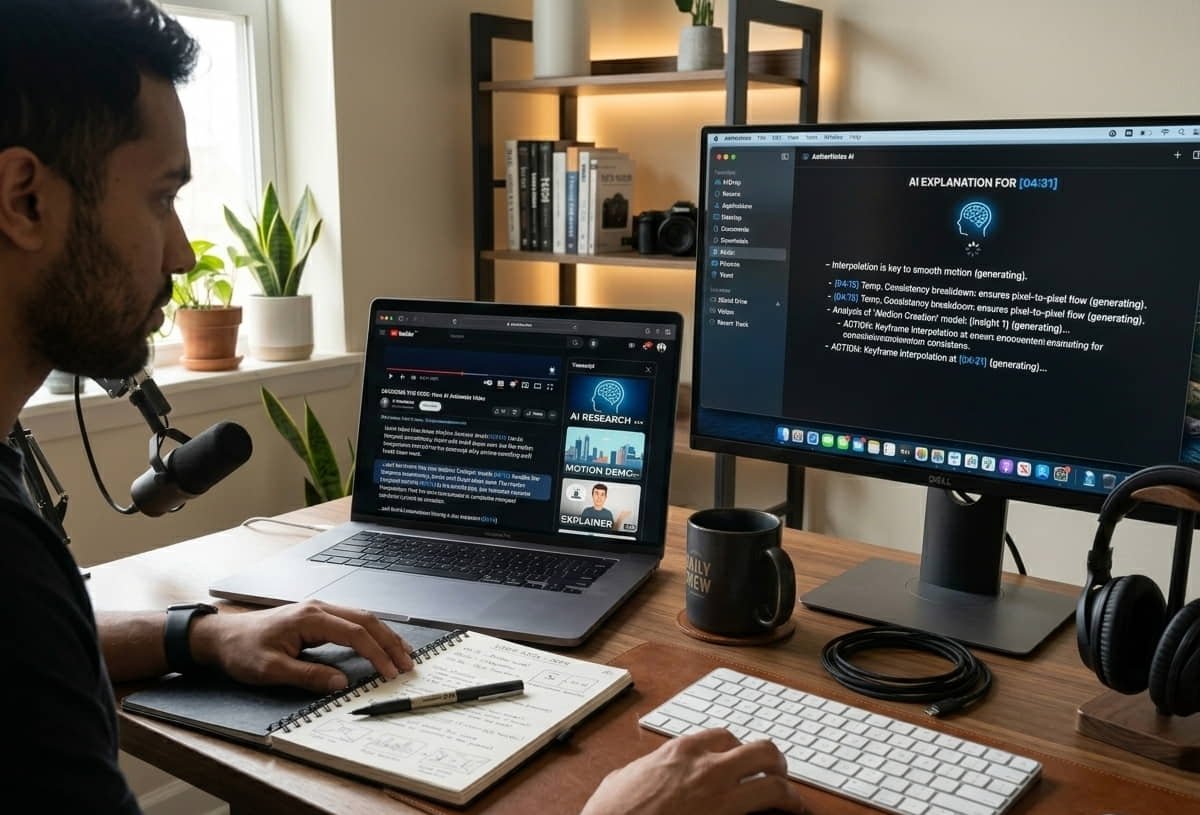
How to See Transcript on YouTube: While searching for a small thing on YouTube, a person’s mood can easily get ruined. The transcript button is often hard to find, creating a timestamp link is supposed to be “simple” but still ends up wrong, and even if you create a playlist, you still don’t know the total watch time. Then you search for one keyword… and Google sends you into ten different tabs.
So this page is meant to be that one place where you get the answers in plain English, without pretending everything is “one click” when it isn’t.
You’ll see a mix of YouTube tips, AI tools, and summary workflows here, because honestly these topics are connected. If you’re making a video essay, studying from videos, or doing commercial video production, you’re basically doing the same loop every day.
And yeah, I’m also covering the messy keywords people keep typing wrong on purpose or by mistake. Summery, summize, smry, NoteGPT, notegpt, notesgpt, even musley instead of Musely. Because that’s real search traffic.
YouTube transcripts: the fastest way to open them (and what to do when they’re missing)
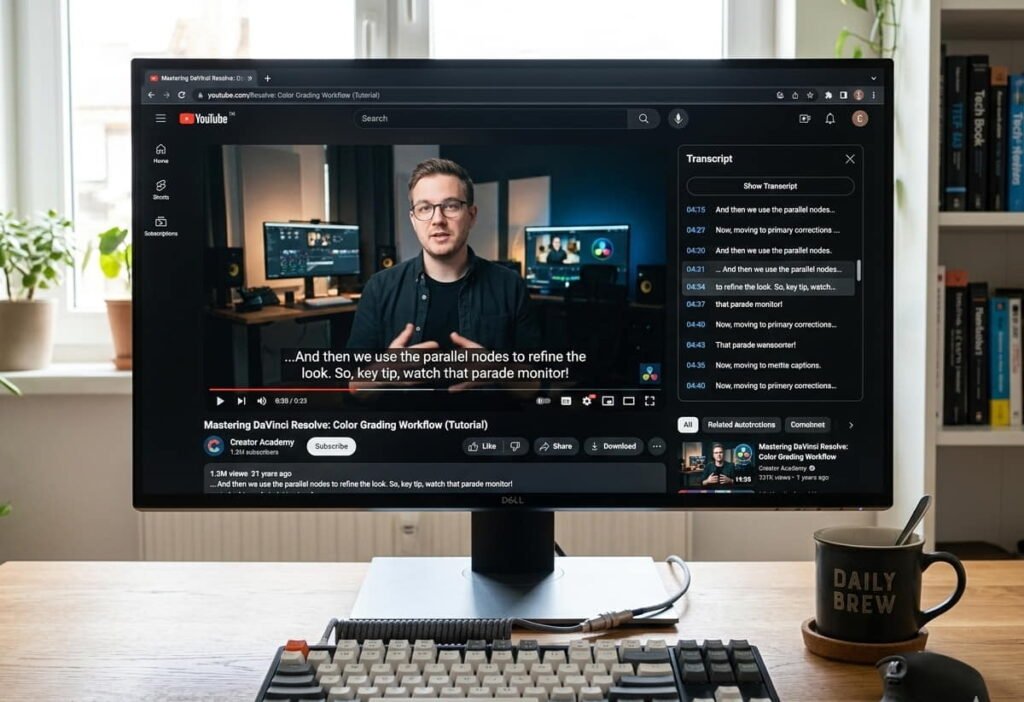
People ask “how to see transcript on youtube” like it’s some hidden feature. It kind of is, because YouTube changes the UI a lot and some videos don’t even have transcripts available.
The clean method on desktop usually looks like this.
You open the video.
You click the three dots menu near the title or the share/save area.
You select Show transcript.
That’s the most common path and it works on a lot of videos. But sometimes you don’t see it and you start thinking the transcript doesn’t exist.
And if you’re wondering how to see transcript on youtube on mobile, that’s where most guides become useless. On mobile the transcript option can be inside the description area. You expand the description, look for the transcript or captions related option, and then open it from there. The exact placement changes, but the logic is the same: if captions exist, transcript usually exists.
Now the practical part nobody tells you.
Sometimes transcripts show up but they’re messy. Wrong words, wrong names, weird punctuation. That’s normal. Auto-captions are like that. The transcript is still useful because you’re not trying to publish it as-is. You’re using it to find moments, quotes, sections, and key points.
And if the transcript is missing, you still have options.
- You can check if captions are disabled.
- You can check if the video is marked “made for kids” or has restrictions that remove some features.
- You can try from desktop even if you first tried on mobile, because YouTube features don’t always match across devices.
This matters more than people think. Because once you can open transcripts quickly, you can do everything else faster.
How to make a YouTube timestamp link that actually works every time
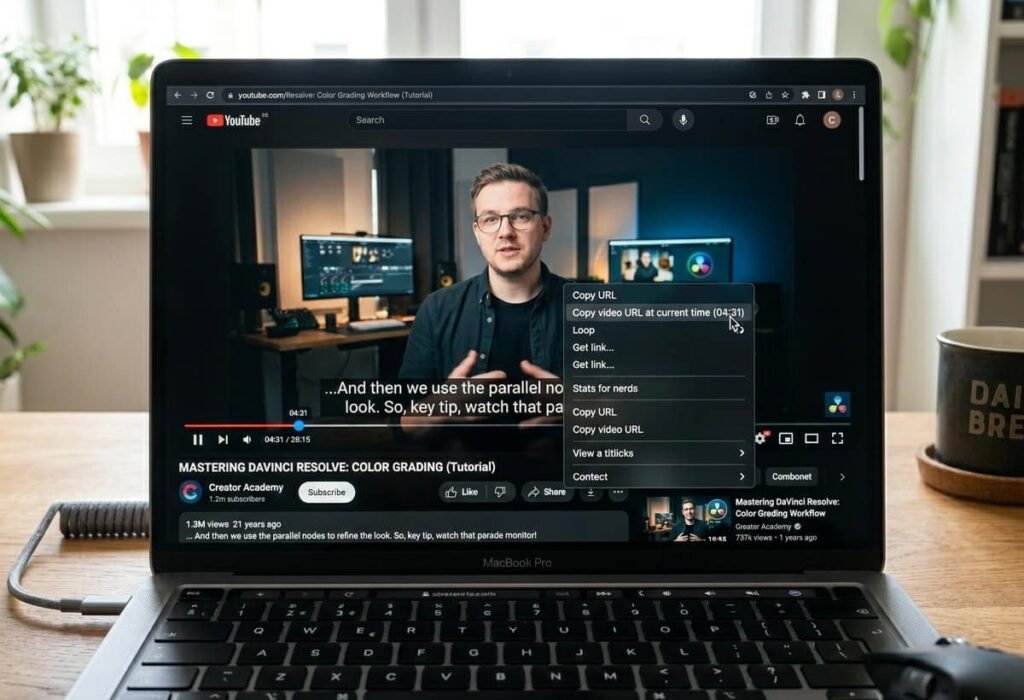
A “youtube timestamp link” is basically a link that opens the same video at a specific time. It’s useful when you’re sending someone the exact moment. It’s also useful when you’re building an article, a video essay script, or a notes doc.
The easiest way is built into YouTube.
On desktop, you can pause the video at the exact moment.
Then you click Share.
Then you tick the “Start at” option and copy the link.
That creates a link with a time parameter.
But here’s the thing. Sometimes you don’t want the share box. You just want a quick copy.
You can right click on the video and choose the option that copies the URL at the current time. YouTube wording changes, but the idea stays the same.
If you’re writing your own links manually, you’ll usually see something like ?t= or &t= in the URL. Both styles exist depending on the base link and platform. YouTube also supports time formats like seconds.
And if you’re doing this for an article, don’t be shy about adding multiple timestamp links. It’s one of those “small effort, big value” things. Readers love it because it feels like you’re respecting their time.
Also, if you’re making chapters inside How to See Transcript on YouTube, timestamps in the description are basically free watch-time optimization. You’re helping the viewer skip to what they want, and most of the time they end up watching more anyway because the experience feels controlled.
YouTube Shorts length limit: what’s true, what’s changed, and how to verify it
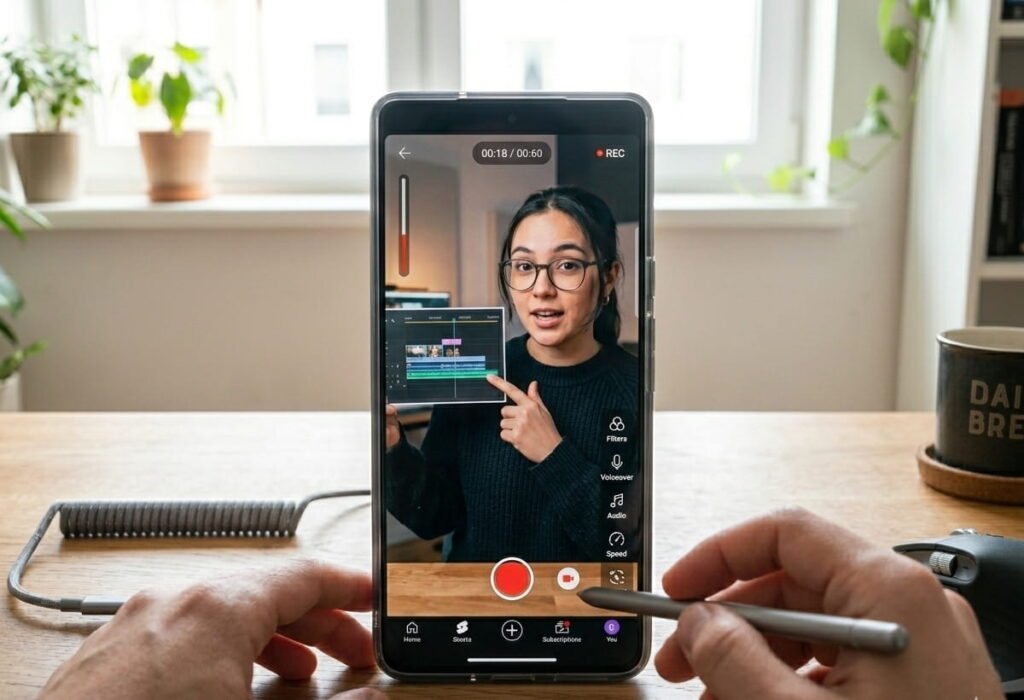
This keyword gets searched daily: youtube shorts length limit.
And the reason it’s confusing is simple. YouTube keeps experimenting. Some accounts get features earlier, some later. And a lot of blogs keep repeating old limits without checking.
Traditionally, Shorts were capped at around 60 seconds. Then YouTube started testing longer Shorts in some contexts and regions. On top of that, vertical videos can sometimes look like Shorts in the feed even when they’re technically normal videos.
So instead of giving you a single line that might become outdated, here’s how you confirm it on your own account in under a minute.
- How to See Transcript on YouTube
- You open the YouTube app.
- You tap create, then Shorts.
- You look at the timer/limit UI in the editor.
That UI is the truth for your account right now.
If you’re uploading from desktop, you can also look at YouTube’s official help pages and announcements. They’re boring, but they’re the source that won’t get your blog flagged for misinformation.
One more practical tip.
If your goal is reach, treat Shorts like Shorts even if longer formats are available. Keep the pacing tight. If you need long storytelling, publish a normal video and cut Shorts from it. That workflow is still the easiest way to grow.
How to create a YouTube playlist without making it a mess
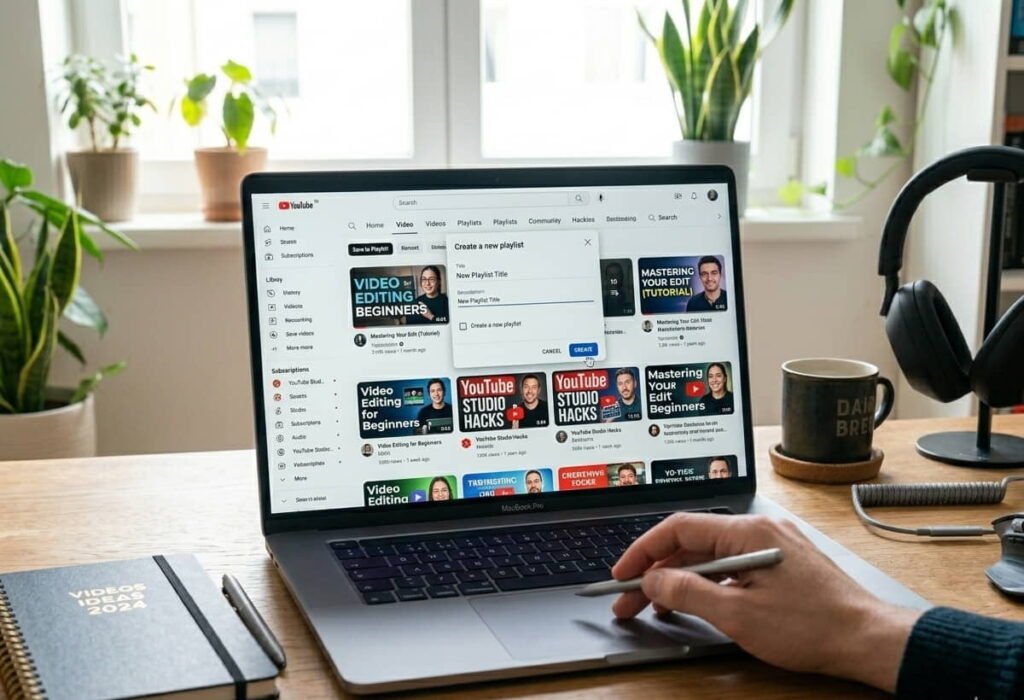
The keyword “how to create a youtube playlist” looks basic, but the problem isn’t creating it. The problem is creating it in a way that’s actually useful for viewers.
The fast method is simple.
- Open any video.
- Hit Save.
- Create a new playlist.
- Name it properly.
But naming matters more than people admit. Because playlists show up in search, and they also show up in suggested. If your playlist name is “random stuff” you’re basically telling YouTube to ignore it.
A better playlist name is clear and human.
Something like “Video Essay Research Notes” or “Commercial Video Production References” or “AI Tools That Actually Help” is better than fancy words.
Also, playlists are not just for organizing. They’re for session time. If someone watches two videos from your playlist, YouTube starts treating your channel like a “bingeable” channel. That helps.
And if you want the playlist to look clean, do the annoying work once.
- Pick a consistent order.
- Write a short description that tells the viewer what they’ll get.
- Set the privacy correctly, because people forget and then wonder why nobody can see it.
YouTube playlist length calculator and duration problems (what works, what doesn’t)
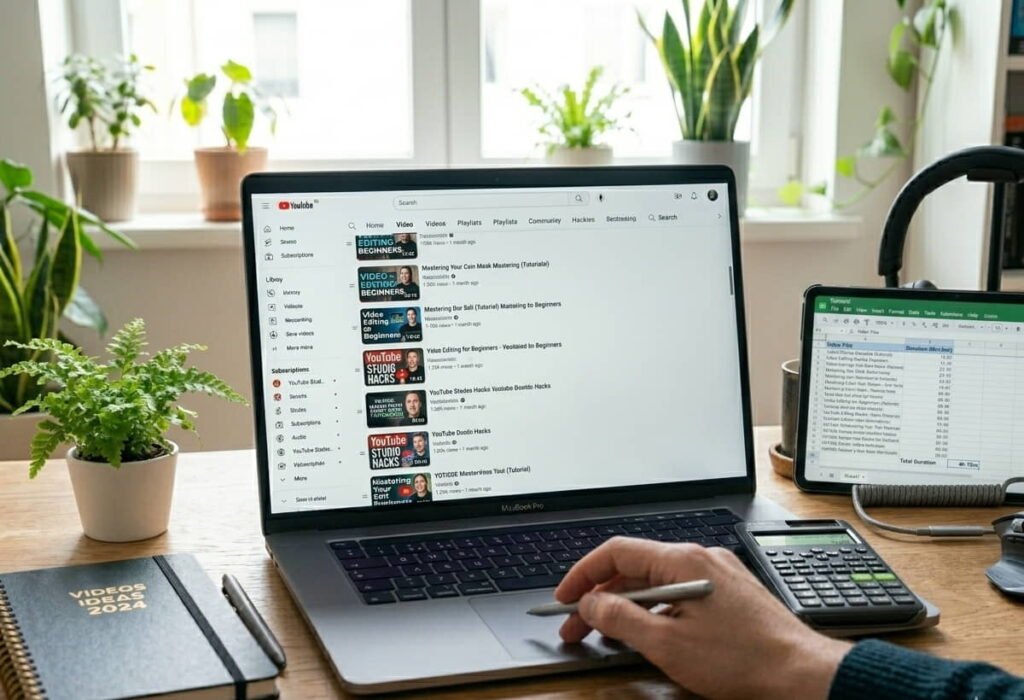
Now the thing that annoys everyone.
You build a playlist. You want to know the total duration. You search “youtube playlist duration calculator” or “youtube playlist length calculator” and you find ten sketchy sites with popups.
So here’s the balanced answer.
YouTube itself does not always show total playlist duration in a simple, universal way. Sometimes you’ll see total time in certain views, sometimes you won’t. It depends on platform and UI version.
That’s why third-party calculators exist. They take the playlist ID, pull the public video durations, and add them up.
If you use a calculator site, keep it simple and safe.
- Use well-known sites.
- Avoid anything that asks you to log in with your Google account.
- Avoid extensions that demand too many permissions.
And if your playlist is private or unlisted, most calculators won’t be able to read it anyway. That’s normal. That’s not a bug. That’s privacy working.
If you’re doing this for planning, like “can I finish this course today” or “how long is this playlist before I share it,” the safest method is to keep the playlist public just for a moment, calculate, then switch it back. Or use your own rough estimate based on average video length if you don’t want to change privacy.
And yeah, some people build their own spreadsheet for this. If you’re that person, respect. It’s not a bad solution.
Can ChatGPT analyze videos? Yes, but not the way people think
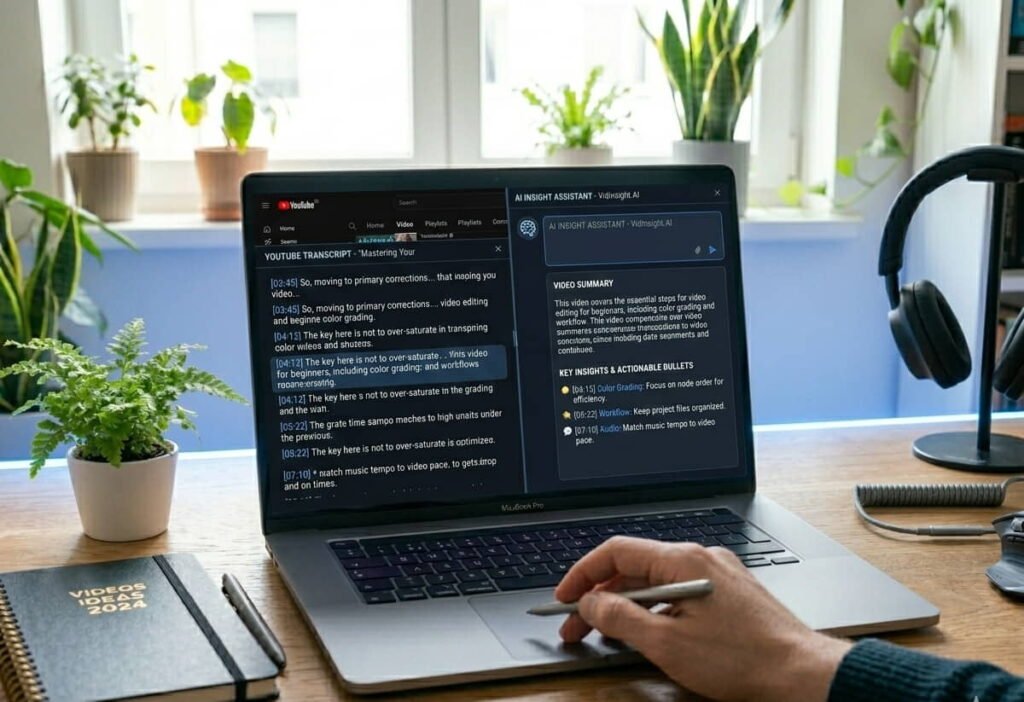
This keyword is getting huge: can chatgpt analyze videos.
The honest answer is that ChatGPT doesn’t “watch YouTube” like a human watches YouTube, unless you provide the content in a form it can process. It can’t magically open a random link and understand everything unless the setup supports browsing and the content is accessible.
But you can still get really good analysis with a simple workflow.
- Grab the transcript.
- Paste it into ChatGPT.
- Ask for the output you actually need.
If you want a video essay breakdown, say that. Ask for claim extraction, argument map, examples used, missing counterpoints, and emotional beats. If you want a study summary, ask for key concepts, definitions, and quiz questions.
This is where most people mess up. They ask “summarize this” and then they get a boring paragraph.
So ask better.
- Ask for sections.
- Ask for what the speaker is trying to prove.
- Ask for what’s implied but not said.
- Ask for what data would be needed to verify claims.
And if you’re doing commercial video production, you can feed a transcript and ask for hooks, alternate intros, and shorter versions for Shorts. It’s basically a repurposing machine if you direct it properly.
Just don’t cross lines.
If a transcript includes private info or client scripts, don’t paste sensitive stuff into random tools without permission. Keep privacy in mind because your reputation matters more than speed.
How to write a summary that sounds human (not like a robot)
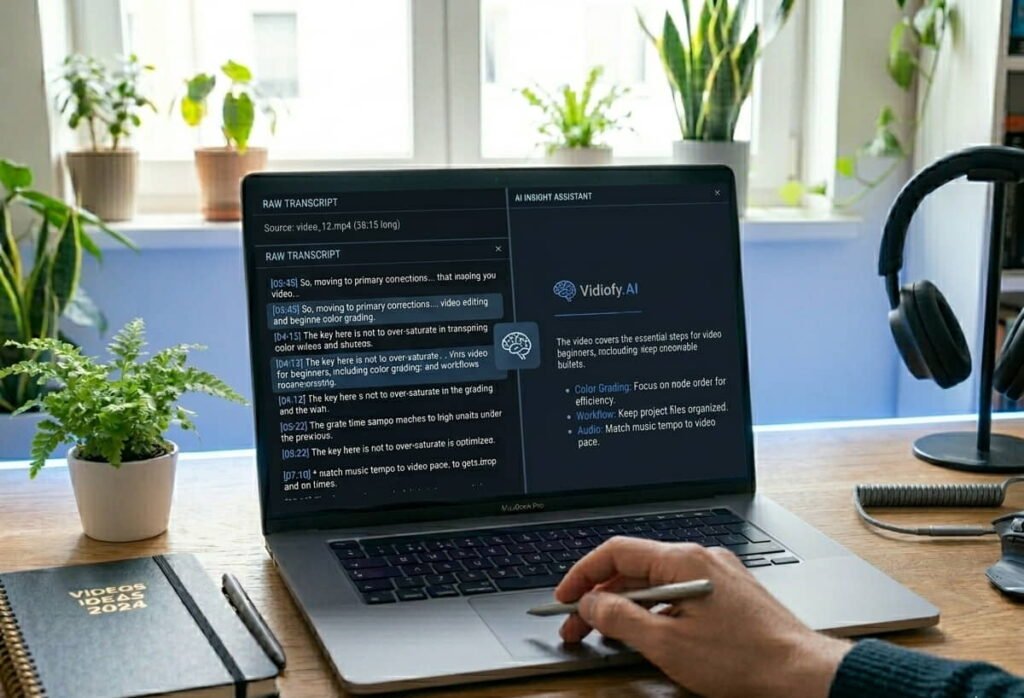
This phrase gets searched in different ways.
- how to write a summary
- summery
- summize
- smry
- summery meaning
- and all the variants.
The reason people struggle is because a good summary is not just “shorter text.” A good summary is selective. It picks what matters, keeps the logic, and drops the filler.
So here’s the method I use, and it works whether you’re using AI or doing it manually.
You start by asking: what is the main point?
Then you collect supporting points.
Then you remove examples unless they’re essential.
Then you rewrite it like you’re explaining it to a friend who didn’t watch the video.
That’s it.
How to See Transcript on YouTube
And if you’re using AI, don’t ask for a final summary first.
- Ask for key points first.
- Then ask for a clean outline.
- Then you rewrite that outline into a summary.
Because when you ask AI for a “summary,” it tries to sound polished. Polished is often fake. Real summaries are clear, sometimes blunt, and they keep the structure.
Also, a summary can be different lengths depending on what you need.
A one-paragraph summary is for quick sharing.
A longer summary is basically notes.
And notes are allowed to be messy. Notes are supposed to be messy.
NoteGPT, NotesGPT, Notegpt: what they do well and where they fail
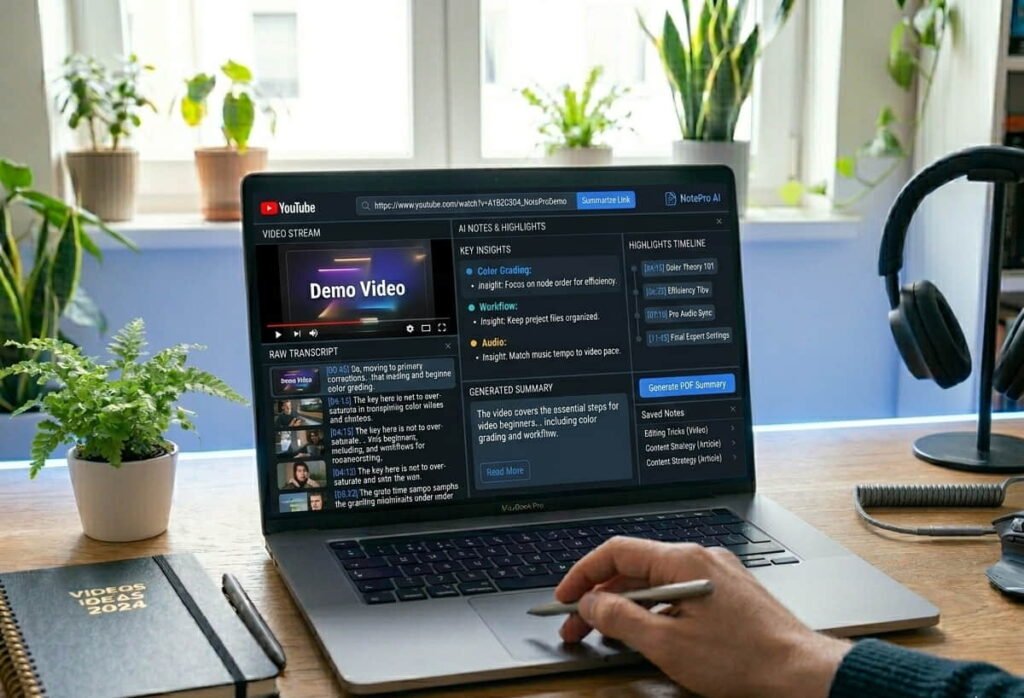
Let’s talk about NoteGPT and all its cousins, because this area is full of confusion.
People search notegpt, notesgpt, and NoteGPT like they’re all different tools. Sometimes they are. Sometimes they’re clones. Sometimes they’re just different branding.
In general, these tools are built to do one job.
Take a YouTube link or a transcript.
Generate notes, highlights, and summary blocks.
And they can be useful, especially when you’re dealing with long interviews, podcasts, lectures, or research-heavy content.
But they have limits.
- They can miss sarcasm.
- They can miss context.
- They can turn a “maybe” into a “fact” if the speaker sounds confident.
So if you use NoteGPT for a video essay, don’t trust it blindly. Use it like a first draft assistant. It gives you structure and speed. You still do the thinking.
If you’re comparing NoteGPT vs other options like Summize or Smry, the difference is usually in formatting and speed.
Summize tends to be better for clean, article-like summaries.
Smry tends to be minimal and quick, good when you just want a rough idea.
And “summery” is often just a misspelling people type when they mean summary tools, so you’ll see sites targeting it, but the quality is random.
The best workflow is mixed.
Use a tool to extract.
Use your brain to polish.
Publish something you can defend.
Free AI image to video generator: Yesichat, plus realistic expectations
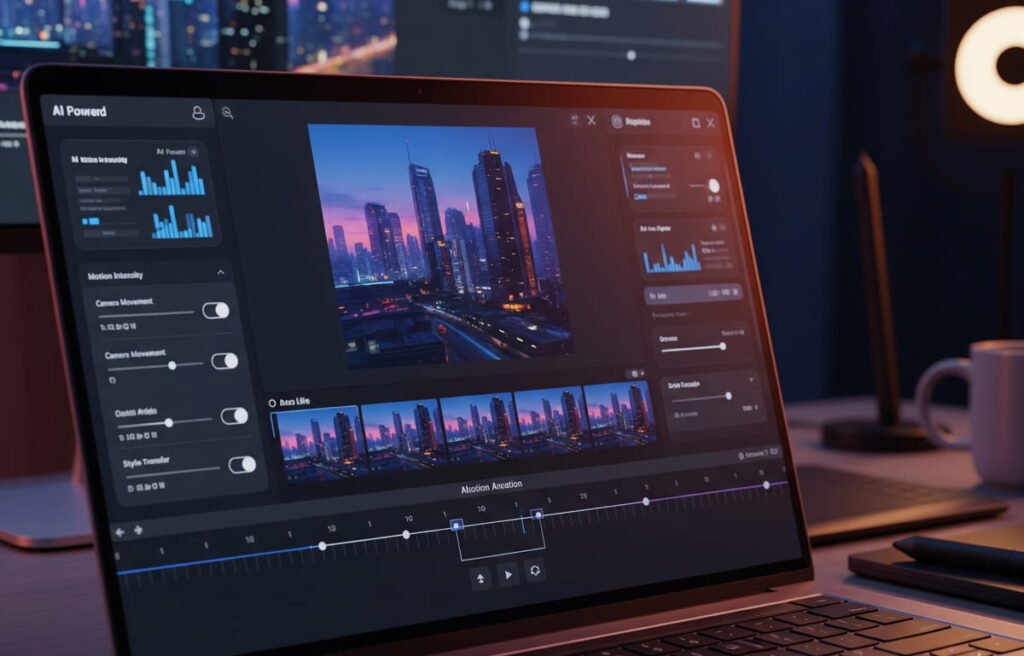
Now the fun keyword: free ai image to video generator.
People want magic. Upload image, get a movie. And yeah, it’s getting better, but you still need the right expectations.
Yesichat is one of the names that pops up a lot recently, and people search it directly as “yesichat” because they want a simple tool that works without signing up for ten different things.
If you’re trying Yesichat for image-to-video, treat it like a concept tool.
- Use it for motion tests.
- Use it for background loops.
- Use it for rough ad concepts.
- Use it for storyboarding clips when you’re pitching to a client.
If you go in expecting perfect hands, perfect text rendering, and perfect physics, you’ll be disappointed. That’s just where the tech is right now.
But for animation ideas, it’s great.
You can take one product image, generate a few motion concepts, and suddenly you have direction. Even if you don’t use the AI output in the final video, it still saves time because you stop staring at a blank page.
And for commercial video production, that “direction” is money. Clients don’t pay for you to be stuck. They pay for you to make decisions.
One more thing, because people ignore this.
If you’re generating video from an image that you don’t own, that’s a rights issue. Even if the tool is free. Use your own assets, client-approved assets, or properly licensed assets. Google and AdSense don’t like copyright drama, and neither do clients.
Video essay workflow: transcripts, timestamps, summaries, and the part that makes you faster
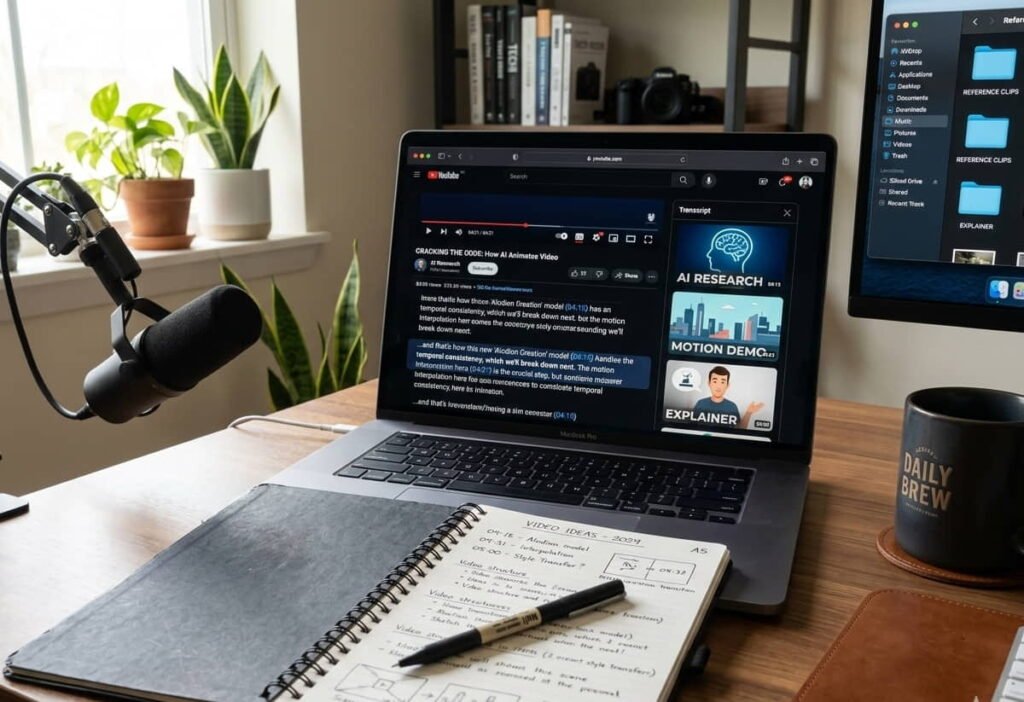
If you’ve ever made a video essay, you already know the pain.
You watch a long video.
You forget where the good quote was.
You watch again.
You waste time.
You end up with a script that feels like a messy notebook.
So here’s a smoother workflow.
- Open the transcript.
- Search inside the transcript for keywords that match your topic.
- When you find the exact line, jump to that moment in the video.
- Create a youtube timestamp link for that moment.
- Drop it into your notes.
Now you have evidence links. Not vibes. Evidence.
Then you take your transcript chunks and ask an AI tool for summary blocks. NoteGPT can help here, so can ChatGPT, so can any decent summarizer.
But the main skill is still yours.
You decide what the argument is.
You decide what clips to use.
You decide what to cut.
AI can speed up the boring middle. It can’t replace taste.
And if you’re wondering why I’m mixing this with YouTube playlists, it’s because playlists are a cheat code for research. Make a playlist called “video essay sources,” dump your references in it, and now your research lives in one place.
A quick word on Musely (and Musley) because people keep asking “does musely work”
Let’s be careful here, because this is a real product tied to skincare and prescriptions.
People search musely, musley, and “does musely work” because they’re tired of fake reviews. Most top results are either affiliate-heavy or overly dramatic.
Here’s the balanced, policy-safe truth.
Musely is a tele-dermatology style service that can provide prescription skincare treatments depending on your case and region. Whether it works depends on your skin condition, the formula you’re given, and how consistently you use it.
Some people see real improvements, especially when prescription ingredients are involved. Some people see irritation. Some people see nothing because they stop early or they were never the right candidate.
And no, this is not medical advice. If you have a serious condition, the correct move is to consult a licensed dermatologist in your area. Online services can be helpful, but they’re not magic.
If you’re writing about Musely on your blog, keep it clean.
- Don’t promise results.
- Don’t use before/after claims like they’re guaranteed.
- Don’t tell people to skip doctors.
That’s how you stay safe with AdSense and still stay honest with readers.
Bringing it all together: the simple “one page” setup that saves time
Most people don’t need more tools. They need less friction.
If you can do these things smoothly, your workflow becomes easier overnight.
- You can open transcripts fast.
- You can pull quotes and build timestamp links.
- You can create a playlist that keeps your research organized.
- You can calculate playlist time when you need planning.
- You can use AI for summaries without letting it lie to you.
- You can generate animation ideas with an image-to-video tool without expecting miracles.
That’s the whole game.
And if you want one practical suggestion, keep a single doc called “YouTube Notes.” Every time you find a useful timestamp, drop the link and a one-line note. After a month, you’ll have a personal library that’s better than any tool.
Read More: Best AI Tools for Business in 2026
Frequently Asked Questions
How do I see transcript on YouTube?
To see transcript on YouTube, open the video on desktop, click the three-dot menu below the video title, and select Show transcript. If captions are available, the transcript panel will appear on the right side of the video where you can read and search the text.
How to see transcript on YouTube on mobile?
On mobile devices, open the YouTube video and expand the description section. If captions are available, you may see the transcript option there. Some videos only show transcripts on desktop, so checking from a computer can also help.
Why can’t I see transcript on YouTube?
Sometimes the transcript option is missing because the video does not have captions enabled. If the creator disabled captions or the video is restricted, the transcript may not appear.
Can I copy the YouTube transcript?
Yes. Once you open the transcript panel, you can highlight the text and copy it. Many creators use transcripts to collect quotes, create notes, or generate summaries using AI tools.
Can AI summarize a YouTube transcript?
Yes, AI tools can summarize YouTube transcripts. You can copy the transcript and paste it into an AI tool to generate summaries, notes, or key points from the video.

1 Comment
It’s frustrating when the transcript button isn’t easy to find! I like how you covered the various ways to quickly access it. The tip about using AI summaries is also a game-changer for speeding up the process.