

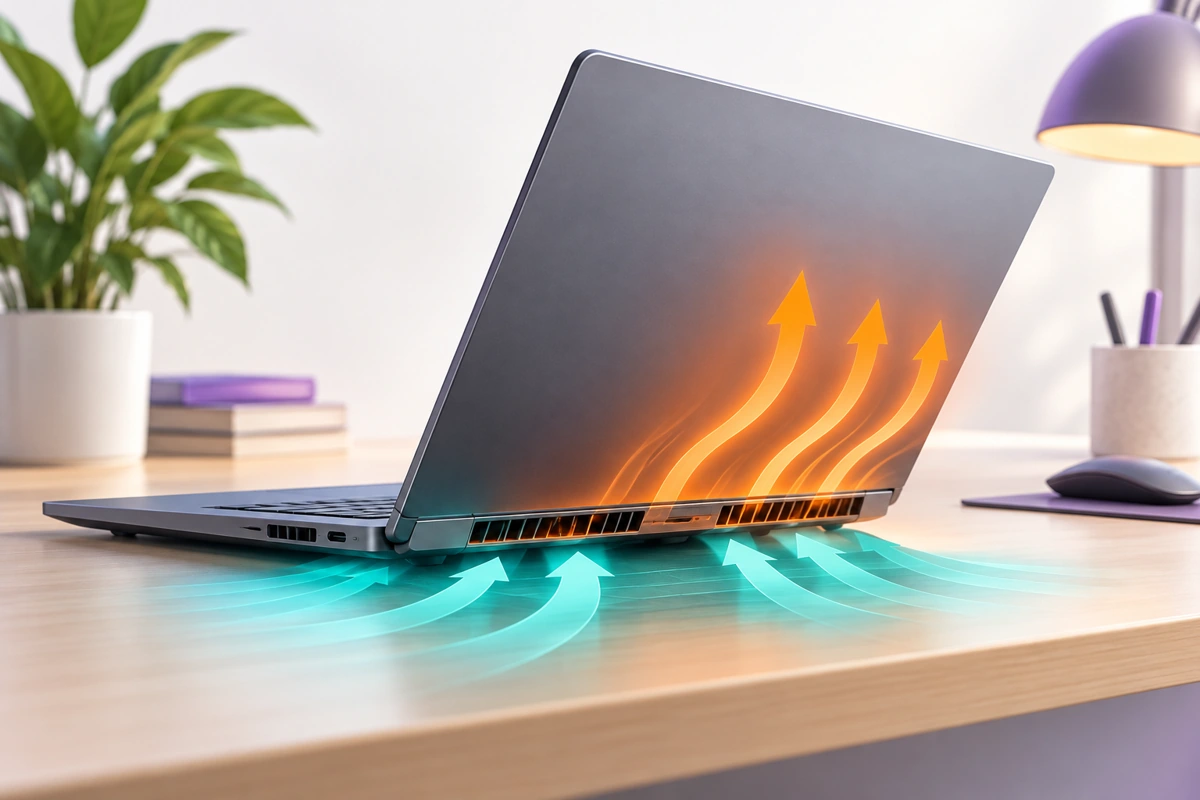
Why Does My Laptop Get Hot: A laptop usually gets hot because its processor or graphics chip is working hard, air cannot move through the vents, or background software is keeping it busy. Warmth during a demanding task can be normal. Heat at idle, repeated shutdowns, a grinding fan, or a swollen case needs a closer look. Start by matching when the heat appears, then change one thing at a time.
This guide focuses on Windows laptops. The airflow checks also apply to other laptops, but diagnostic menus and power settings vary by manufacturer. If your main problem is lag rather than heat, start with our Windows 11 slow PC troubleshooting guide.
First, decide whether it is warmth or an overheating problem.
A warm underside and a fan that speeds up during a video export do not, on their own, prove that something is broken. More useful clues are changes: the same task suddenly produces far more noise, performance drops after several minutes, or the computer shuts down under a workload it previously handled.
Stop troubleshooting the device and call a repair service if the case is lifted, there is a burning smell or a liquid odor coming from the device, or the device looks damaged. Shut it down and unplug the charger if there is no danger. Do not press a swollen case closed or try to remove a swollen battery yourself.
Match the heat pattern before changing settings.
| What you notice | What to check first | Useful next step |
|---|---|---|
| Hot with nothing deliberately open | Background CPU activity and blocked vents | Restart, then watch Task Manager. |
| Hot during games or video editing | Workload, frame rate, and ventilation | Compare a lighter workload on the same desk. |
| Hot mainly while charging | Power mode, charger condition, and workload | Compare light use on battery and plugged in. |
| Hot during browser use or calls | Tabs, extensions, and video effects | Repeat the task with fewer tabs and effects. |
| Fan grinds, rattles, or reports an error. | Possible fan fault | Run the manufacturer’s diagnostic. |
| Hot inside a closed bag | Whether the laptop actually shut down | Shut down fully before packing it |
This is a starting map, not a hardware diagnosis. Two causes can overlap: a game may expose a cooling problem that ordinary browsing never reveals.
Why is my laptop hot when idle?
Pay attention to a process that stays busy instead of reacting to one spike.
If you know the app, close it and see how the fan works.
Do not terminate a process that does not seem familiar only because it appears near the top. Identify it first. If the update is in progress, let it finish and keep your PC well-ventilated. Recurring problems with some third-party applications are an indication that you should check these application settings and upgrade, not disable your security.
How to help with fan noise/heat issues in laptops? Check if the noise/heat is related to a specific application or not. If it is related to an application, then you can try to find solutions to problems caused by that application. Otherwise, you should move on to airflow and hardware checks.
Fix airflow before buying anything
Try the same normal task on a bare desk. A blanket, cushion, or papers beneath the laptop can cover intake vents even if the exhaust on the side looks clear. Look at the bottom and rear as well as the sides; vent positions differ between models.
Keep the machine out of direct sunlight and leave space around its exhaust. If you use a stand, choose one that supports the laptop securely without covering its intakes. A cooling pad can be an optional aid, but it does not establish whether a fan is healthy or resolve a blocked internal heatsink.
For dust cleaning, shut down and unplug the laptop and follow its manufacturer’s instructions. Do not push objects through the grille or spray liquid into a vent. Internal cleaning should follow the model’s service guidance; if you are unsure how to open it safely, use a repair technician.
Why does my laptop get hot while charging?
Compare like with like. If you game while plugged in but only read documents on battery, that comparison cannot isolate charging as the cause. Repeat a light task in both conditions and note the power mode, fan behavior, and any warning messages.
In Windows 11, open Settings → System → Power & battery → Power mode. For everyday work, try Balanced if it is available. Some laptops use manufacturer profiles or a different power-plan configuration, so the choices may differ.
Also check whether your laptop’s own utility is set to a performance or turbo profile. Change one setting, repeat the same task, and judge the tradeoff. A quieter mode can reduce performance; it is not a repair for failing cooling hardware.
Use a compatible charger specified for the laptop. If the connector, cable, or adapter is damaged, intermittently disconnects, or smells unusual, stop using it and get it checked. Do not assume that every shutdown during charging is caused by CPU temperature.
Heat during gaming, editing, or video calls
Gaming: compare a sensible frame-rate limit
A useful first comparison is the same game and scene with a lower graphics preset or a frame-rate limit. If fan noise drops while gameplay remains acceptable, you have found a workload adjustment that may suit you. If crashes or shutdowns continue, keep investigating rather than treating lower settings as a complete fix.
Video editing: separate playback from exporting
Write down whether the heat starts while scrubbing the timeline, generating previews, or exporting. These are different workloads. Where your editor supports them, lower-resolution preview files or proxies can make editing lighter. They will not necessarily make a final export cool or silent.
If you are choosing a replacement machine, compare sustained-workload reviews and cooling behavior as well as processor names. Our video-editing laptop comparison is a starting point for the specification checks.
Browser and calls: simplify one session
Close tabs you do not need, pause the background video, and temporarily turn off call effects such as background blur. Repeat the same call setup. If one browser extension is suspect, test with that extension disabled rather than removing everything at once. Keep a note of what changed so you can restore settings that made no difference.
Check updates and the fan, in that order.
If basic checks do not explain the change, look for relevant updates through Windows Update and the laptop manufacturer’s official support page or installed utility. Match the exact model. Avoid third-party driver packs and “one-click overheating fixes.”
A BIOS update deserves extra care: read the manufacturer’s instructions, connect stable power, and do not interrupt it. Do not start one on a machine that cannot reliably stay powered on. An update may address a documented issue, but installing firmware blindly is not a substitute for identifying the symptom.
Next, use the manufacturer’s hardware diagnostics if available. Record any fan error and its code. A passing test is useful evidence, but an intermittent fault can still need investigation. A rattling fan, recurring thermal shutdowns, or persistent heat under light use is a reason to arrange service.
What is thermal throttling, and is a loud fan always bad?
If thermal throttling is happening, the processor’s operating frequency is lowered due to the temperature limit. Although it can be helpful for PC stability, it may lead to decreasing the speed of performing the task. Fan speedup is just a part of the cooling system. Loudness does not give you the idea about whether throttling occurs or not.
Look for a reproducible situation: the laptop starts to work with a task normally, gets shot, and then starts to perform badly. Other problems could result in the same situation, so do not diagnose throttling from touching the laptop. Every laptop model and workload is unique, and there are no specificnumbersproving that the laptop is in good condition or broken.
What not to do to a hot laptop?
- Do not disable thermal protections, antivirus, or essential Windows services to chase a lower reading.
- Do not put the laptop in a fridge; use ice packs on it or introduce moisture.
- Do not start a long stress test on a machine already shutting down unexpectedly.
- Do not apply thermal paste without the right service information and repair skills.
- Do not keep repeating the same failed fix. Record the result and move to the next relevant check.
A short check log makes the next decision easier.
Use this checklist after each change. It is more helpful than “still feels hot.”
- Situation: idle, charging, game, export, or call.
- Setup: surface, power mode, and apps open.
- Change: one setting or one app closed.
- Result: fan settles, task slows, warning appears, or shutdown repeats.
- Next step: keep the helpful change, restore it, or seek service.
For example, “fan becomes quiet after closing one browser tab on the same desk” points to a different next step from “fan rattles even before Windows starts.” This is an illustrative comparison, not a claim that we tested your particular laptop.
Frequently asked questions
Is it normal for a laptop to get hot?
Warmth during demanding work can be normal. New shutdowns, unusual noises, physical damage, or persistent heat under light use deserve investigation. Compare behavior with the same workload rather than relying only on how the case feels.
Why is my laptop fan so loud with no apps open?
Check Task Manager for background activity first. If activity is low and the noise persists, check airflow and run the manufacturer’s fan diagnostic. No visible windows does not mean nothing is running.
Will a cooling pad fix laptop overheating?
It may help airflow on a suitable setup. It cannot repair a failing fan, damaged battery, or another hardware fault. Try a clear hard surface before spending money.
Should I use “Best Performance” mode always?
Choose it when performance matters more than power consumption. For ordinary work, compare Balanced if available. Pick the setting that suits the workload and check that any manufacturer thermal profile agrees with it.
Can dust make a laptop hot and slow?
Dust can obstruct the cooling path. Follow the model’s cleaning guidance and seek service if reaching the affected area requires disassembly you are not comfortable performing.
Should I replace thermal paste myself?
Not as a first troubleshooting step. Confirm the workload, airflow and diagnostic results first. Internal repairs need model-specific instructions and appropriate skills.
If nothing worked, take the evidence to a technician
Back up important files while the machine is stable. Note the exact model, diagnostic codes and the conditions that trigger the problem. Ask the technician to investigate the cooling system and relevant power or battery symptoms. That record is more useful than buying another utility and hoping it will cool the hardware.
Sources and scope: The model-specific diagnostic and safety checks were cross-checked against Dell’s overheating guidance. Windows power-mode navigation is covered in Microsoft’s power-mode documentation. Follow your own manufacturer’s instructions where they differ. This is an editorial troubleshooting guide, not a benchmark test of every laptop model.
