

Full bars but slow internet usually means your device has a strong connection to the router, while another part of the connection is limiting performance. Start by checking whether one device or every device is slow, then compare Wi-Fi with Ethernet if available. This separates a device problem from a wireless problem or an issue with your internet service.
If your phone also stutters when you open offline apps, use our slow Android phone diagnosis guide alongside these network checks. A slow phone and a slow internet connection need different fixes.
Quick check: what to do first
- Pause large downloads and cloud uploads you control.
- Test the same website on a second device using the same Wi-Fi.
- Repeat a speed test near the main router.
- Compare an Ethernet connection if you have a laptop and suitable adapter.
- Change one thing at a time and write down the result.
Keep your normal internet settings until a test gives you a reason to change them. Buying a router or changing DNS before locating the problem can waste time and money.
Wi-Fi bars vs speed: what the icon actually tells you
The Wi-Fi icon describes the wireless connection your device sees. It does not measure the complete journey between your device and a website. A nearby access point can have a strong signal while its upstream connection, another wireless hop or your internet service is slow.
Think of the connection as four links: device to access point, access point to main router, router to internet provider, and provider to the service you are opening. Strong bars only describe part of that chain. A phone beside a range extender can therefore show full bars while the extender struggles to reach the main router.
Three numbers help explain the difference. Download speed describes incoming transfer capacity; upload speed describes outgoing capacity; latency describes the delay before a response arrives. Video calls also care about consistency and packet loss. A connection can download a large file quickly yet feel poor when delay spikes during another person’s upload.
Do not confuse a Wi-Fi link-rate label with an internet speed-test result. The first describes a local connection’s negotiated rate; the second measures a transfer through more of the network. Neither guarantees that every website will perform equally well.
Diagnose full bars but slow internet before changing settings
One device or every device?
Open the same two unrelated websites on a phone and a laptop, one after the other. Keep both on the same network; temporarily turn off mobile data on the phone so it does not quietly use cellular service. Restore it after the comparison.
If only one device struggles, focus on that device’s apps, wireless adapter and configuration. If both devices struggle, investigate the shared network. If one website is slow while others behave normally, the service itself or the route to it may be involved. A router reset is unlikely to solve a problem affecting only one remote website.
Near the router or everywhere?
Repeat your test close to the main router, then in the room where you noticed the issue. Use the same device and test service. Note whether you are connected to the main router, an extender or a mesh point.
A large improvement near the main router points toward wireless coverage, interference or a weak connection between network points. Similar poor results everywhere leave upstream capacity, shared traffic and router performance on the list. This is a useful clue, not proof of a single cause.
Wi-Fi or the internet service?
Where practical, connect a laptop directly to a LAN port on the main router using Ethernet and turn off the laptop’s Wi-Fi for the test. Do not plug an unfamiliar cable into the fibre port or disconnect an optical fibre lead. If the router has no available port, use its own built-in internet test if supported.
Ethernet performing well while Wi-Fi struggles points toward the wireless side. Both performing poorly makes the router’s upstream connection or provider more relevant, but first rule out downloads and device limitations. A slow laptop can affect both tests.
A simple symptom map
- Only one phone is slow: compare another browser, check background activity and update the phone.
- Every device is slow, including Ethernet: check shared traffic, equipment status and your provider.
- Wi-Fi is slow but Ethernet is healthy: investigate the wireless band, interference and placement.
- Devices beside an extender are slow: compare a direct connection to the main router.
- Problems happen mainly during uploads: repeat a call or latency test after pausing the upload.
- One website or app is slow: compare another service before changing network settings.
- Speed drops at the same evening hour: keep a short time-based log and compare wired results.
This map helps choose the next test. It does not turn a single speed-test result into a hardware diagnosis.
The 10-minute home test flow
1. Record a baseline
Write down your plan’s advertised download and upload speeds, the device, room, time and whether other people are using the connection. Run one speed test and note download, upload and latency. Use the same test server for comparisons where the service lets you choose it.
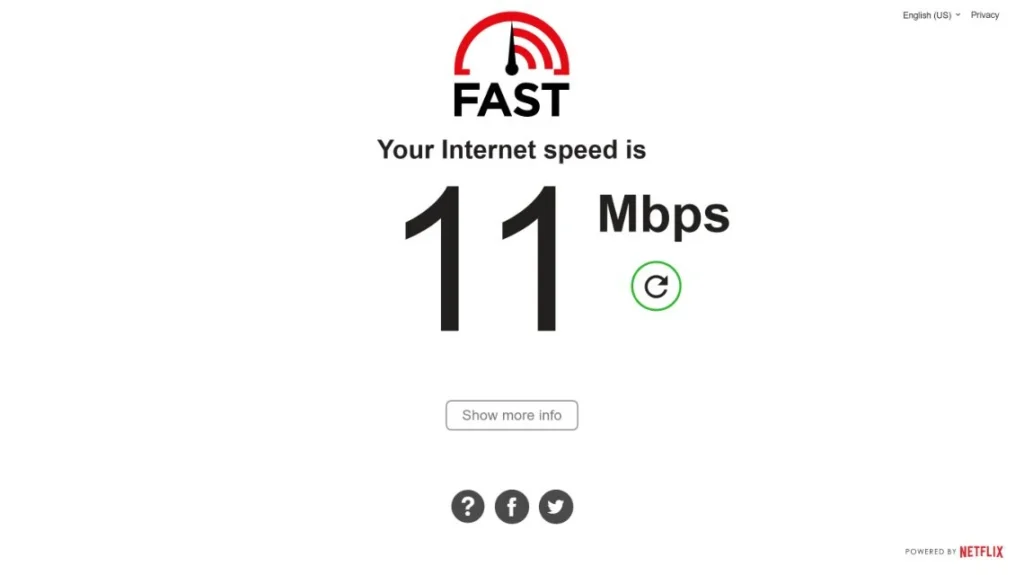
A speed test uses bandwidth and is affected by its server and current traffic. Avoid running several tests at once. Repeat a surprising result once, rather than treating the first number as final evidence.
2. Pause competing transfers
Pause game downloads, operating-system downloads and photo backups you recognize. Ask household members before interrupting their work. Repeat the test with the same device and location.
If the result improves, shared capacity is involved. Decide whether scheduling downloads or using your router’s supported traffic-priority feature would solve the problem before purchasing faster hardware.
3. Compare a second device and location
Test a second device near the main router. Then take your original device to that location and retest. This gives you a useful two-way comparison instead of changing both the device and location and guessing which one mattered.
Record the network band if your device or router shows it. A phone and laptop can use different bands even when the network name is identical.
4. Add the wired comparison
Run the Ethernet test if possible. Note any adapter, dock or intermediate switch used; these can introduce their own limits. Re-enable Wi-Fi after testing if you normally use it.
5. Choose one targeted fix
Use the pattern in your results to select the relevant section below. Retest after that change, under similar conditions. If nothing improves, move to the next supported check instead of making five changes together.
Illustrative example, not a measured result: imagine a laptop and phone both slow down on Wi-Fi, but the laptop works normally over Ethernet. The next step is to investigate Wi-Fi, not upgrade the internet plan. If only the phone is slow on the same network, start with the phone.
Fixes in the order that matches your results
Fix 1: restart normally, without a factory reset
Use your router’s restart option or follow the manufacturer’s power-restart instructions. Wait for the connection to return before testing. If you have separate modem and router equipment, follow your provider’s restart order and allow each device to reconnect.
A restart may clear a temporary problem. It will not increase your plan speed or repair an unsuitable cable. The small reset button can erase configuration, so do not press it as a substitute for restarting.
Google explains normal network restarts and upstream checks in its slow internet troubleshooting guidance.
Fix 2: compare 2.4 GHz and 5 GHz
If your router already offers separate network names, compare the two bands near the router using the same device. If it uses one combined name, check its official app or manual before changing band settings.
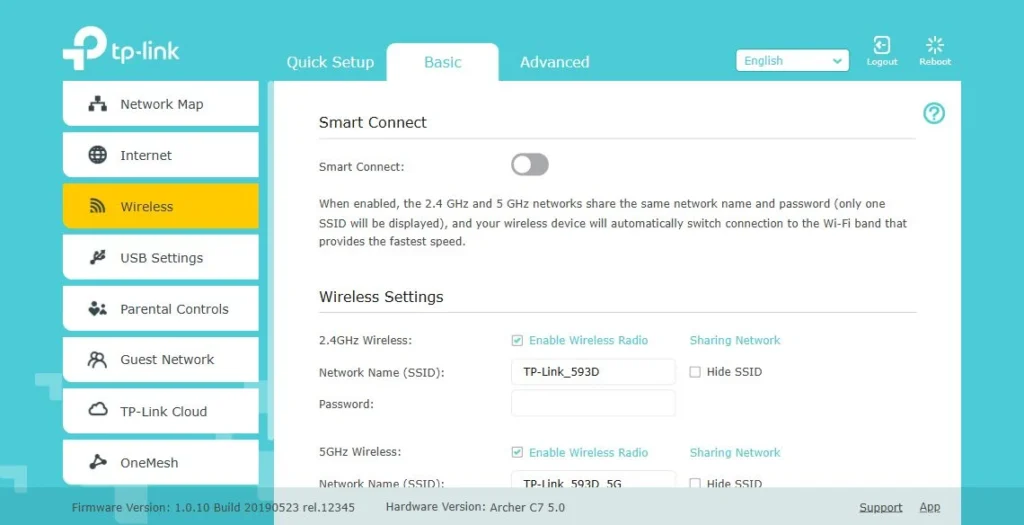
5 GHz often offers more capacity nearby; 2.4 GHz can be useful at longer distances or through obstacles. Neither is the automatic winner in every room. Keep the band that gives the more stable result where you actually work. 5 GHz Wi-Fi is also different from a mobile carrier’s 5G service.
A phone that does not support a band cannot connect to it. Do not disable the only band used by smart-home devices just to improve one laptop. Microsoft’s home-layout and Wi-Fi guide explains the trade-offs.
Fix 3: improve the route between wireless points
Move the main router into a more open position where practical. Avoid hiding it inside a metal cabinet or behind dense equipment. Test the affected room again before deciding that more access points are needed.
For an extender or mesh point, placement must serve two connections: to your device and back toward the main network. Placing it directly inside a dead zone can leave a weak upstream link even when your phone sees strong bars beside it.
Use the manufacturer’s mesh or signal test if available. Wired backhaul can be useful on compatible systems, but check the product’s supported setup first. TP-Link provides practical placement advice in its Wi-Fi signal and range guide.
Fix 4: address the device that fails the comparison
On a Windows 11 laptop, use the Network and Internet troubleshooter in Get Help. Check Task Manager for recognizable apps transferring data, then pause their downloads in the app itself. Update the wireless driver through Windows Update or the device manufacturer’s official support page.
Avoid ending unfamiliar system processes or installing driver-updater utilities from advertisements. Microsoft’s Windows Wi-Fi troubleshooting guide includes supported checks.
On Android, restart, update the system and affected app, and compare another browser or app. Forget and reconnect to the network only if you know its password. Device-wide network resets can remove saved connections, so read the confirmation screen and use them later in the process.
If offline tasks are also slow on your PC, our Windows 11 slow PC fix guide helps separate performance problems from connection problems.
Fix 5: isolate VPN, browser and DNS symptoms
On a personal device, compare a second browser and temporarily pause a personal VPN if you understand the privacy implications. Re-enable it after the test. Do not bypass an employer’s required VPN or managed security settings.
DNS resolves website names. Investigate it when sites are slow to begin opening or show name-resolution errors, while established downloads behave normally. Changing DNS does not create extra broadband capacity or fix a weak wireless link.
If you try a supported DNS change, record the original setting, use the provider’s official instructions, and restore it if there is no improvement. Cloudflare explains this role in its DNS resolver documentation. Do not change router DNS blindly on a network you do not manage.
Fix 6: check the upstream connection and contact your ISP
Review your router’s internet status and equipment specifications. A damaged or unsuitable Ethernet connection between router and upstream equipment can limit throughput. Check connections you can safely access; ask your provider to inspect supplied equipment if you are unsure.
Collect two or three comparable wired results at different times. Include your plan, router model, outage-light status and whether other devices were downloading. Ask your provider to check line health, service faults and any plan or usage limits that apply to your account.
An evening pattern is useful evidence but does not prove provider congestion. Household activity can produce the same pattern. Give support the measurements rather than only saying that the Wi-Fi has full bars.
What not to change blindly
- Do not turn off Wi-Fi encryption or the firewall to chase a faster test.
- Do not install a speed-booster app that promises extra bandwidth.
- Do not factory-reset the router before saving configuration and checking provider requirements.
- Do not select the widest wireless channel just because the number is bigger.
- Do not buy an extender solely because your phone shows a strong nearby signal.
- Do not treat an advertised router speed as a guaranteed internet speed.
If a fix makes the connection worse, restore the previous setting before moving on. Keeping a small change log is more useful than copying a long list of random settings.
If nothing worked: send a useful support note
Use this checklist when contacting your provider or router manufacturer:
- Service plan and approximate time the issue started.
- Router model and firmware version, without sharing passwords.
- Whether one device or all devices are affected.
- Wi-Fi band and location used for each comparison.
- Wired and wireless download, upload and latency results.
- Whether pausing uploads or restarting changed the pattern.
- Which websites work normally and which do not.
Crop public screenshots to hide your public IP, account details, Wi-Fi password and private network names. Share sensitive diagnostic information only through the provider’s official support channel.
Frequently asked questions
Why is my Wi-Fi slow even with full bars?
The signal to the nearby access point can be strong while bandwidth, interference, an upstream link, a device or the remote service limits performance. Compare another device and Ethernet to narrow it down.
Do Wi-Fi bars show internet speed?
No. They describe part of the wireless connection and cannot show the capacity or reliability of every link between your device and a website. Use comparable tests instead of relying on the icon.
Is 2.4 GHz or 5 GHz better for speed?
5 GHz often performs better nearby, while 2.4 GHz can be more usable farther away. Test both in the room you use. Your device, obstacles and competing networks affect the result.
Can changing DNS fix full bars but slow internet?
It can help a DNS-related delay or failure, but it will not increase your internet plan’s bandwidth or repair a poor Wi-Fi link. Investigate it after the basic device and network comparisons.
Why is only my phone slow on Wi-Fi?
If another device works normally in the same place, compare the phone’s apps, browser, VPN and network configuration. Also check whether it is using a different wireless band. Offline lag suggests a separate phone-performance problem.
Why do I have full bars beside an extender but low speed?
Your phone may have a strong link to the extender while the extender’s connection back to the main router is weak or busy. Compare a direct connection to the main router and review extender placement.
Should I upgrade my router or internet plan first?
Measure first. Healthy Ethernet with poor Wi-Fi makes wireless equipment or placement more relevant. Poor wired and wireless performance calls for upstream and provider checks. Upgrade only after identifying a limit the purchase would address.
Final recommendation
For full bars but slow internet, start with one device versus all devices, then near-router and wired comparisons. Keep the fix that improves a repeatable test. This approach helps you locate the limiting link without sacrificing security or buying hardware on a guess.
If the connection is healthy but opening apps still feels slow, continue with our Android performance guide.
